How to Dropship With WordPress? (Full Guide)
Dropshipping Learning
Author: Prince
December 5, 2025
Contents
To learn how to dropship with WordPress, you need to:
Choose a reliable web host and a domain name
Install WordPress and WooCommerce
Add a dropshipping plugin (Spocket, DSers, etc.)
Add your products, configure payments and shipping
Optimize your store for SEO and launch your marketing campaigns
No inventory, low startup costs, and full flexibility, WordPress makes it easy to create a dropshipping store even without technical skills. Today, over 43% of all e-commerce websites run on WordPress, proving how powerful and scalable the platform is.
Here’s the complete guide to help you get started.
Step 1: Choose a Hosting Provider and a Domain Name
If you want to run a WordPress dropshipping store, you first need:
A fast, secure hosting provider
A clear, brand-friendly domain name
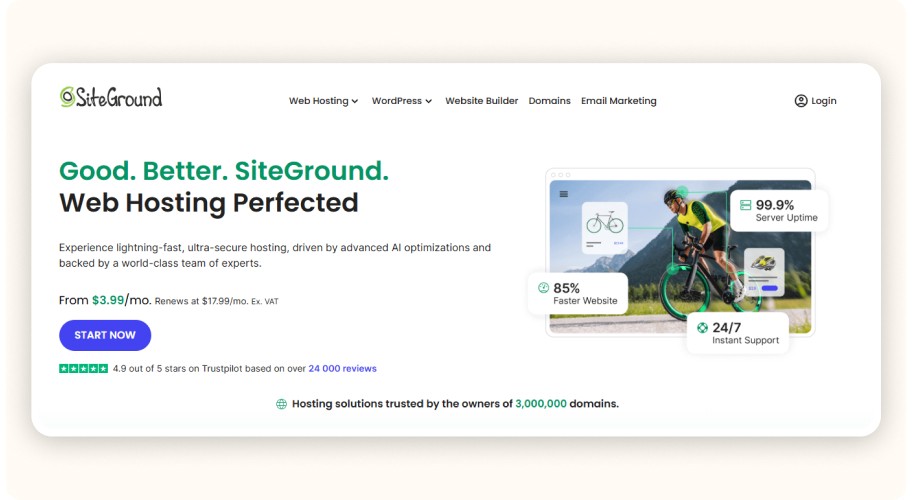
Choose a WooCommerce-compatible host such as SiteGround, Hostinger, or Bluehost. These providers offer:
One-click WordPress installation
Fast and stable servers
Free SSL certificates
Responsive customer support
Avoid extremely cheap hosting. It slows down your store and hurts your SEO.
For your domain name, keep it short, simple, and niche-focused. Example: minimalistwatchstore.com if you’re selling watches.
Avoid: numbers, hyphens, confusing words, overly generic names. You must also activate an SSL certificate (HTTPS) to secure payments and build trust. Most hosts include it for free.
Before choosing your hosting plan, verify:
SSD storage
Optimized loading speed
Uptime higher than 99.9%
These factors directly affect your Core Web Vitals, and therefore your Google ranking.
Step 2: Install WordPress and WooCommerce
Installing WordPress + WooCommerce gives you a fully customizable store ready to receive your first products, without hiring a developer. If you're still unsure about your setup, this section will show you exactly how to make a dropshipping website with WordPress that’s fast, reliable, and optimized for conversions.
Install WordPress in One Click
Most hosting providers (SiteGround, Bluehost, Hostinger…) allow you to install WordPress in one click.
Once installed, access your dashboard through: yourwebsite.com/wp-admin
This is where you’ll manage your entire WordPress dropshipping website.
Add the WooCommerce Plugin
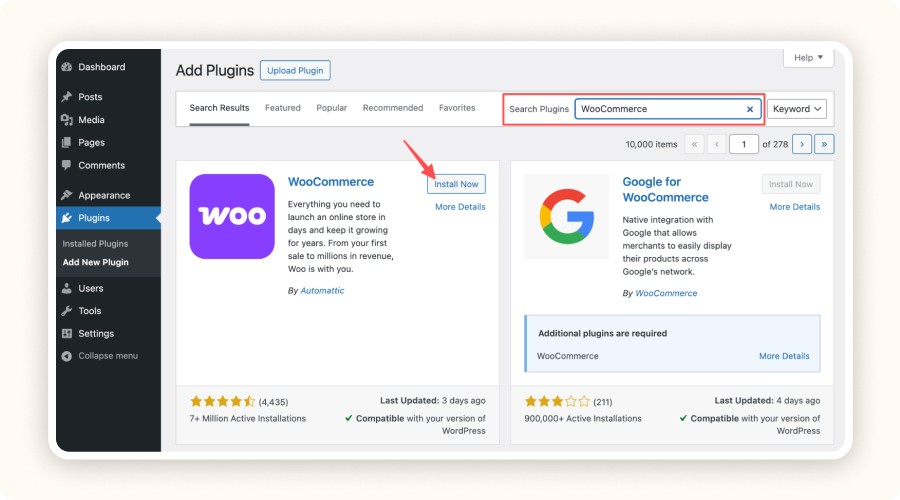
Go to Plugins > Add New, search for WooCommerce, click Install, then Activate.
A setup wizard will appear. Configure:
Store address (required for taxes and shipping zones)
Currency (USD, EUR, etc.)
Shipping regions
Product type: select physical products for dropshipping
This takes only a few minutes.
Prepare Your Store for Dropshipping Integration
WooCommerce works seamlessly with the best dropshipping tools, including Spocket, DSers, and AliDropship. These plugins allow you to:
Import products automatically
Sync stock and prices in real time
Automate order fulfillment
Once this setup is complete, your WordPress dropshipping store is ready to run, no coding required.

To learn how to dropship with WordPress, you need to:
Choose a reliable web host and a domain name
Install WordPress and WooCommerce
Add a dropshipping plugin (Spocket, DSers, etc.)
Add your products, configure payments and shipping
Optimize your store for SEO and launch your marketing campaigns
No inventory, low startup costs, and full flexibility, WordPress makes it easy to create a dropshipping store even without technical skills. Today, over 43% of all e-commerce websites run on WordPress, proving how powerful and scalable the platform is.
Here’s the complete guide to help you get started.
Step 1: Choose a Hosting Provider and a Domain Name

If you want to run a WordPress dropshipping store, you first need:
A fast, secure hosting provider
A clear, brand-friendly domain name
Choose a WooCommerce-compatible host such as SiteGround, Hostinger, or Bluehost. These providers offer:
One-click WordPress installation
Fast and stable servers
Free SSL certificates
Responsive customer support
Avoid extremely cheap hosting. It slows down your store and hurts your SEO.
For your domain name, keep it short, simple, and niche-focused. Example: minimalistwatchstore.com if you’re selling watches.
Avoid: numbers, hyphens, confusing words, overly generic names. You must also activate an SSL certificate (HTTPS) to secure payments and build trust. Most hosts include it for free.
Before choosing your hosting plan, verify:
SSD storage
Optimized loading speed
Uptime higher than 99.9%
These factors directly affect your Core Web Vitals, and therefore your Google ranking.
Step 2: Install WordPress and WooCommerce

Installing WordPress + WooCommerce gives you a fully customizable store ready to receive your first products, without hiring a developer. If you're still unsure about your setup, this section will show you exactly how to make a dropshipping website with WordPress that’s fast, reliable, and optimized for conversions.
Install WordPress in One Click
Most hosting providers (SiteGround, Bluehost, Hostinger…) allow you to install WordPress in one click.
Once installed, access your dashboard through: yourwebsite.com/wp-admin
This is where you’ll manage your entire WordPress dropshipping website.
Add the WooCommerce Plugin
Go to Plugins > Add New, search for WooCommerce, click Install, then Activate.
A setup wizard will appear. Configure:
Store address (required for taxes and shipping zones)
Currency (USD, EUR, etc.)
Shipping regions
Product type: select physical products for dropshipping
This takes only a few minutes.
Prepare Your Store for Dropshipping Integration
WooCommerce works seamlessly with the best dropshipping tools, including Spocket, DSers, and AliDropship. These plugins allow you to:
Import products automatically
Sync stock and prices in real time
Automate order fulfillment
Once this setup is complete, your WordPress dropshipping store is ready to run, no coding required.
To learn how to dropship with WordPress, you need to:
Choose a reliable web host and a domain name
Install WordPress and WooCommerce
Add a dropshipping plugin (Spocket, DSers, etc.)
Add your products, configure payments and shipping
Optimize your store for SEO and launch your marketing campaigns
No inventory, low startup costs, and full flexibility, WordPress makes it easy to create a dropshipping store even without technical skills. Today, over 43% of all e-commerce websites run on WordPress, proving how powerful and scalable the platform is.
Here’s the complete guide to help you get started.
Step 1: Choose a Hosting Provider and a Domain Name

If you want to run a WordPress dropshipping store, you first need:
A fast, secure hosting provider
A clear, brand-friendly domain name
Choose a WooCommerce-compatible host such as SiteGround, Hostinger, or Bluehost. These providers offer:
One-click WordPress installation
Fast and stable servers
Free SSL certificates
Responsive customer support
Avoid extremely cheap hosting. It slows down your store and hurts your SEO.
For your domain name, keep it short, simple, and niche-focused. Example: minimalistwatchstore.com if you’re selling watches.
Avoid: numbers, hyphens, confusing words, overly generic names. You must also activate an SSL certificate (HTTPS) to secure payments and build trust. Most hosts include it for free.
Before choosing your hosting plan, verify:
SSD storage
Optimized loading speed
Uptime higher than 99.9%
These factors directly affect your Core Web Vitals, and therefore your Google ranking.
Step 2: Install WordPress and WooCommerce

Installing WordPress + WooCommerce gives you a fully customizable store ready to receive your first products, without hiring a developer. If you're still unsure about your setup, this section will show you exactly how to make a dropshipping website with WordPress that’s fast, reliable, and optimized for conversions.
Install WordPress in One Click
Most hosting providers (SiteGround, Bluehost, Hostinger…) allow you to install WordPress in one click.
Once installed, access your dashboard through: yourwebsite.com/wp-admin
This is where you’ll manage your entire WordPress dropshipping website.
Add the WooCommerce Plugin
Go to Plugins > Add New, search for WooCommerce, click Install, then Activate.
A setup wizard will appear. Configure:
Store address (required for taxes and shipping zones)
Currency (USD, EUR, etc.)
Shipping regions
Product type: select physical products for dropshipping
This takes only a few minutes.
Prepare Your Store for Dropshipping Integration
WooCommerce works seamlessly with the best dropshipping tools, including Spocket, DSers, and AliDropship. These plugins allow you to:
Import products automatically
Sync stock and prices in real time
Automate order fulfillment
Once this setup is complete, your WordPress dropshipping store is ready to run, no coding required.
To learn how to dropship with WordPress, you need to:
Choose a reliable web host and a domain name
Install WordPress and WooCommerce
Add a dropshipping plugin (Spocket, DSers, etc.)
Add your products, configure payments and shipping
Optimize your store for SEO and launch your marketing campaigns
No inventory, low startup costs, and full flexibility, WordPress makes it easy to create a dropshipping store even without technical skills. Today, over 43% of all e-commerce websites run on WordPress, proving how powerful and scalable the platform is.
Here’s the complete guide to help you get started.
Step 1: Choose a Hosting Provider and a Domain Name

If you want to run a WordPress dropshipping store, you first need:
A fast, secure hosting provider
A clear, brand-friendly domain name
Choose a WooCommerce-compatible host such as SiteGround, Hostinger, or Bluehost. These providers offer:
One-click WordPress installation
Fast and stable servers
Free SSL certificates
Responsive customer support
Avoid extremely cheap hosting. It slows down your store and hurts your SEO.
For your domain name, keep it short, simple, and niche-focused. Example: minimalistwatchstore.com if you’re selling watches.
Avoid: numbers, hyphens, confusing words, overly generic names. You must also activate an SSL certificate (HTTPS) to secure payments and build trust. Most hosts include it for free.
Before choosing your hosting plan, verify:
SSD storage
Optimized loading speed
Uptime higher than 99.9%
These factors directly affect your Core Web Vitals, and therefore your Google ranking.
Step 2: Install WordPress and WooCommerce

Installing WordPress + WooCommerce gives you a fully customizable store ready to receive your first products, without hiring a developer. If you're still unsure about your setup, this section will show you exactly how to make a dropshipping website with WordPress that’s fast, reliable, and optimized for conversions.
Install WordPress in One Click
Most hosting providers (SiteGround, Bluehost, Hostinger…) allow you to install WordPress in one click.
Once installed, access your dashboard through: yourwebsite.com/wp-admin
This is where you’ll manage your entire WordPress dropshipping website.
Add the WooCommerce Plugin
Go to Plugins > Add New, search for WooCommerce, click Install, then Activate.
A setup wizard will appear. Configure:
Store address (required for taxes and shipping zones)
Currency (USD, EUR, etc.)
Shipping regions
Product type: select physical products for dropshipping
This takes only a few minutes.
Prepare Your Store for Dropshipping Integration
WooCommerce works seamlessly with the best dropshipping tools, including Spocket, DSers, and AliDropship. These plugins allow you to:
Import products automatically
Sync stock and prices in real time
Automate order fulfillment
Once this setup is complete, your WordPress dropshipping store is ready to run, no coding required.
To learn how to dropship with WordPress, you need to:
Choose a reliable web host and a domain name
Install WordPress and WooCommerce
Add a dropshipping plugin (Spocket, DSers, etc.)
Add your products, configure payments and shipping
Optimize your store for SEO and launch your marketing campaigns
No inventory, low startup costs, and full flexibility, WordPress makes it easy to create a dropshipping store even without technical skills. Today, over 43% of all e-commerce websites run on WordPress, proving how powerful and scalable the platform is.
Here’s the complete guide to help you get started.
Step 1: Choose a Hosting Provider and a Domain Name

If you want to run a WordPress dropshipping store, you first need:
A fast, secure hosting provider
A clear, brand-friendly domain name
Choose a WooCommerce-compatible host such as SiteGround, Hostinger, or Bluehost. These providers offer:
One-click WordPress installation
Fast and stable servers
Free SSL certificates
Responsive customer support
Avoid extremely cheap hosting. It slows down your store and hurts your SEO.
For your domain name, keep it short, simple, and niche-focused. Example: minimalistwatchstore.com if you’re selling watches.
Avoid: numbers, hyphens, confusing words, overly generic names. You must also activate an SSL certificate (HTTPS) to secure payments and build trust. Most hosts include it for free.
Before choosing your hosting plan, verify:
SSD storage
Optimized loading speed
Uptime higher than 99.9%
These factors directly affect your Core Web Vitals, and therefore your Google ranking.
Step 2: Install WordPress and WooCommerce

Installing WordPress + WooCommerce gives you a fully customizable store ready to receive your first products, without hiring a developer. If you're still unsure about your setup, this section will show you exactly how to make a dropshipping website with WordPress that’s fast, reliable, and optimized for conversions.
Install WordPress in One Click
Most hosting providers (SiteGround, Bluehost, Hostinger…) allow you to install WordPress in one click.
Once installed, access your dashboard through: yourwebsite.com/wp-admin
This is where you’ll manage your entire WordPress dropshipping website.
Add the WooCommerce Plugin
Go to Plugins > Add New, search for WooCommerce, click Install, then Activate.
A setup wizard will appear. Configure:
Store address (required for taxes and shipping zones)
Currency (USD, EUR, etc.)
Shipping regions
Product type: select physical products for dropshipping
This takes only a few minutes.
Prepare Your Store for Dropshipping Integration
WooCommerce works seamlessly with the best dropshipping tools, including Spocket, DSers, and AliDropship. These plugins allow you to:
Import products automatically
Sync stock and prices in real time
Automate order fulfillment
Once this setup is complete, your WordPress dropshipping store is ready to run, no coding required.
To learn how to dropship with WordPress, you need to:
Choose a reliable web host and a domain name
Install WordPress and WooCommerce
Add a dropshipping plugin (Spocket, DSers, etc.)
Add your products, configure payments and shipping
Optimize your store for SEO and launch your marketing campaigns
No inventory, low startup costs, and full flexibility, WordPress makes it easy to create a dropshipping store even without technical skills. Today, over 43% of all e-commerce websites run on WordPress, proving how powerful and scalable the platform is.
Here’s the complete guide to help you get started.
Step 1: Choose a Hosting Provider and a Domain Name

If you want to run a WordPress dropshipping store, you first need:
A fast, secure hosting provider
A clear, brand-friendly domain name
Choose a WooCommerce-compatible host such as SiteGround, Hostinger, or Bluehost. These providers offer:
One-click WordPress installation
Fast and stable servers
Free SSL certificates
Responsive customer support
Avoid extremely cheap hosting. It slows down your store and hurts your SEO.
For your domain name, keep it short, simple, and niche-focused. Example: minimalistwatchstore.com if you’re selling watches.
Avoid: numbers, hyphens, confusing words, overly generic names. You must also activate an SSL certificate (HTTPS) to secure payments and build trust. Most hosts include it for free.
Before choosing your hosting plan, verify:
SSD storage
Optimized loading speed
Uptime higher than 99.9%
These factors directly affect your Core Web Vitals, and therefore your Google ranking.
Step 2: Install WordPress and WooCommerce

Installing WordPress + WooCommerce gives you a fully customizable store ready to receive your first products, without hiring a developer. If you're still unsure about your setup, this section will show you exactly how to make a dropshipping website with WordPress that’s fast, reliable, and optimized for conversions.
Install WordPress in One Click
Most hosting providers (SiteGround, Bluehost, Hostinger…) allow you to install WordPress in one click.
Once installed, access your dashboard through: yourwebsite.com/wp-admin
This is where you’ll manage your entire WordPress dropshipping website.
Add the WooCommerce Plugin
Go to Plugins > Add New, search for WooCommerce, click Install, then Activate.
A setup wizard will appear. Configure:
Store address (required for taxes and shipping zones)
Currency (USD, EUR, etc.)
Shipping regions
Product type: select physical products for dropshipping
This takes only a few minutes.
Prepare Your Store for Dropshipping Integration
WooCommerce works seamlessly with the best dropshipping tools, including Spocket, DSers, and AliDropship. These plugins allow you to:
Import products automatically
Sync stock and prices in real time
Automate order fulfillment
Once this setup is complete, your WordPress dropshipping store is ready to run, no coding required.
Step 3: Choose and Customize a WordPress Theme

The design of your store directly impacts trust and conversions. Choosing an optimized theme helps you build a professional, fast, and easy-to-navigate website, even if you’re not a designer.
Choose an eCommerce-optimized theme
For a WordPress dropshipping website, pick a theme that is fast, responsive, and beginner-friendly.
Here are the three best options:
Astra: lightweight, WooCommerce-compatible, extremely easy to customize
OceanWP: flexible and feature-rich, great for multi-product stores
Storefront: built by WooCommerce, stable and 100% compatible out of the box
Avoid heavy premium themes overloaded with features. They slow down your website and make customization harder, especially if you’re new to how to dropship with WordPress.
Customize your store without coding
Go to Appearance > Customize inside your WordPress dashboard to adjust:
Colors: keep them consistent with your niche (e.g., earthy tones for eco-friendly products)
Fonts: clean and readable fonts improve the browsing experience
Logo: create a simple, professional logo with a tool like Canva
Always think about user experience. Every element should clearly guide the visitor toward the purchase. Simple, minimalist stores usually convert better than complex, overloaded layouts.
Plugin | Free? | Best For |
|---|---|---|
Spocket | ✅ | US/EU suppliers, fast shipping |
AliDropship | ❌ | Automated AliExpress importing |
Syncee | ✅ (limited) | Large product catalog integration |
DSers | ✅ | Bulk orders, AliExpress automation |
Spocket and DSers are ideal for beginners. They integrate directly with WooCommerce and automate product import and order fulfillment, essential when learning how to create a dropshipping website with WordPress.
AliDropship is powerful but paid. It’s best if your store focuses primarily on AliExpress products.
Key eCommerce & SEO Plugins
Plugin | Free? | Best For |
|---|---|---|
Booster for WooCommerce | ✅ | Advanced WooCommerce features |
Rank Math / Yoast SEO | ✅ | On-site SEO optimization |
Booster for WooCommerce adds useful functions like dynamic pricing, promotional badges, and payment options.
For SEO, install Rank Math or Yoast SEO. These tools optimize your product pages, URLs, meta tags, and overall structure, essential for growing organic traffic to a WordPress dropshipping website.
Only install essential plugins. Too many plugins slow down your site, create conflicts, and hurt your SEO.
Step 4: Find Reliable Dropshipping Suppliers
Your supplier is the backbone of your business. One bad product or a long delivery time and you immediately lose customers.
How to choose a trustworthy dropshipping supplier?
Before partnering with a supplier, always check:
Product quality: descriptions, photos, and real customer reviews
Shipping times: ideally 5 to 10 days max to stay competitive
Responsiveness: active support and reliable order tracking
Reliability: clear return policy, updated stock, accurate listings
To avoid surprises, always order a sample. Test the real quality, packaging, and delivery speed before adding any product to your store.
Local vs. international suppliers
Local suppliers offer faster shipping and a better customer experience. However, their catalog is smaller and prices are often higher.
International suppliers (AliExpress, CJdropshipping) provide huge product variety and lower costs, but delivery takes longer.
Choose based on your target market. And always validate product quality with a sample before scaling.
Supplier | Shipping Time | WordPress Integration | Best For |
|---|---|---|---|
Spocket | 2–7 days (US/EU) | ✅ | Local, premium products |
CJdropshipping | 7–15 days | ✅ | Wide selection, strong support |
AliExpress + DSers | 10–25 days | ✅ | Low prices, high volume |
WordPress & Supplier Integration
Spocket, DSers, CJdropshipping, and AliExpress integrate directly with WooCommerce through plugins. You can import products, adjust pricing, and automate orders with just a few clicks — essential when learning how to dropship with WordPress.
Training With Minea Academy
Need structured guidance? Minea Academy ranks among the best dropshipping courses, far ahead of eCom King, Biaheza, Andrew Tate, and others.
The program includes 32+ hours of step-by-step video lessons, teaching:
product validation
niche selection
store setup
advanced advertising
long-term scaling
You also get access to the private Club Minea, where you can ask questions, share results, and progress with other members.
Want faster results? Choose the 1:1 coaching program with a clear goal: Reach $1,000/day within 90 days, or get refunded.

Step 3: Choose and Customize a WordPress Theme

The design of your store directly impacts trust and conversions. Choosing an optimized theme helps you build a professional, fast, and easy-to-navigate website, even if you’re not a designer.
Choose an eCommerce-optimized theme
For a WordPress dropshipping website, pick a theme that is fast, responsive, and beginner-friendly.
Here are the three best options:
Astra: lightweight, WooCommerce-compatible, extremely easy to customize
OceanWP: flexible and feature-rich, great for multi-product stores
Storefront: built by WooCommerce, stable and 100% compatible out of the box
Avoid heavy premium themes overloaded with features. They slow down your website and make customization harder, especially if you’re new to how to dropship with WordPress.
Customize your store without coding
Go to Appearance > Customize inside your WordPress dashboard to adjust:
Colors: keep them consistent with your niche (e.g., earthy tones for eco-friendly products)
Fonts: clean and readable fonts improve the browsing experience
Logo: create a simple, professional logo with a tool like Canva
Always think about user experience. Every element should clearly guide the visitor toward the purchase. Simple, minimalist stores usually convert better than complex, overloaded layouts.
Plugin | Free? | Best For |
|---|---|---|
Spocket | ✅ | US/EU suppliers, fast shipping |
AliDropship | ❌ | Automated AliExpress importing |
Syncee | ✅ (limited) | Large product catalog integration |
DSers | ✅ | Bulk orders, AliExpress automation |
Spocket and DSers are ideal for beginners. They integrate directly with WooCommerce and automate product import and order fulfillment, essential when learning how to create a dropshipping website with WordPress.
AliDropship is powerful but paid. It’s best if your store focuses primarily on AliExpress products.
Key eCommerce & SEO Plugins
Plugin | Free? | Best For |
|---|---|---|
Booster for WooCommerce | ✅ | Advanced WooCommerce features |
Rank Math / Yoast SEO | ✅ | On-site SEO optimization |
Booster for WooCommerce adds useful functions like dynamic pricing, promotional badges, and payment options.
For SEO, install Rank Math or Yoast SEO. These tools optimize your product pages, URLs, meta tags, and overall structure, essential for growing organic traffic to a WordPress dropshipping website.
Only install essential plugins. Too many plugins slow down your site, create conflicts, and hurt your SEO.
Step 4: Find Reliable Dropshipping Suppliers

Your supplier is the backbone of your business. One bad product or a long delivery time and you immediately lose customers.
How to choose a trustworthy dropshipping supplier?
Before partnering with a supplier, always check:
Product quality: descriptions, photos, and real customer reviews
Shipping times: ideally 5 to 10 days max to stay competitive
Responsiveness: active support and reliable order tracking
Reliability: clear return policy, updated stock, accurate listings
To avoid surprises, always order a sample. Test the real quality, packaging, and delivery speed before adding any product to your store.
Local vs. international suppliers
Local suppliers offer faster shipping and a better customer experience. However, their catalog is smaller and prices are often higher.
International suppliers (AliExpress, CJdropshipping) provide huge product variety and lower costs, but delivery takes longer.
Choose based on your target market. And always validate product quality with a sample before scaling.
Supplier | Shipping Time | WordPress Integration | Best For |
|---|---|---|---|
Spocket | 2–7 days (US/EU) | ✅ | Local, premium products |
CJdropshipping | 7–15 days | ✅ | Wide selection, strong support |
AliExpress + DSers | 10–25 days | ✅ | Low prices, high volume |
WordPress & Supplier Integration
Spocket, DSers, CJdropshipping, and AliExpress integrate directly with WooCommerce through plugins. You can import products, adjust pricing, and automate orders with just a few clicks — essential when learning how to dropship with WordPress.
Training With Minea Academy
Need structured guidance? Minea Academy ranks among the best dropshipping courses, far ahead of eCom King, Biaheza, Andrew Tate, and others.
The program includes 32+ hours of step-by-step video lessons, teaching:
product validation
niche selection
store setup
advanced advertising
long-term scaling
You also get access to the private Club Minea, where you can ask questions, share results, and progress with other members.
Want faster results? Choose the 1:1 coaching program with a clear goal: Reach $1,000/day within 90 days, or get refunded.
Step 3: Choose and Customize a WordPress Theme

The design of your store directly impacts trust and conversions. Choosing an optimized theme helps you build a professional, fast, and easy-to-navigate website, even if you’re not a designer.
Choose an eCommerce-optimized theme
For a WordPress dropshipping website, pick a theme that is fast, responsive, and beginner-friendly.
Here are the three best options:
Astra: lightweight, WooCommerce-compatible, extremely easy to customize
OceanWP: flexible and feature-rich, great for multi-product stores
Storefront: built by WooCommerce, stable and 100% compatible out of the box
Avoid heavy premium themes overloaded with features. They slow down your website and make customization harder, especially if you’re new to how to dropship with WordPress.
Customize your store without coding
Go to Appearance > Customize inside your WordPress dashboard to adjust:
Colors: keep them consistent with your niche (e.g., earthy tones for eco-friendly products)
Fonts: clean and readable fonts improve the browsing experience
Logo: create a simple, professional logo with a tool like Canva
Always think about user experience. Every element should clearly guide the visitor toward the purchase. Simple, minimalist stores usually convert better than complex, overloaded layouts.
Plugin | Free? | Best For |
|---|---|---|
Spocket | ✅ | US/EU suppliers, fast shipping |
AliDropship | ❌ | Automated AliExpress importing |
Syncee | ✅ (limited) | Large product catalog integration |
DSers | ✅ | Bulk orders, AliExpress automation |
Spocket and DSers are ideal for beginners. They integrate directly with WooCommerce and automate product import and order fulfillment, essential when learning how to create a dropshipping website with WordPress.
AliDropship is powerful but paid. It’s best if your store focuses primarily on AliExpress products.
Key eCommerce & SEO Plugins
Plugin | Free? | Best For |
|---|---|---|
Booster for WooCommerce | ✅ | Advanced WooCommerce features |
Rank Math / Yoast SEO | ✅ | On-site SEO optimization |
Booster for WooCommerce adds useful functions like dynamic pricing, promotional badges, and payment options.
For SEO, install Rank Math or Yoast SEO. These tools optimize your product pages, URLs, meta tags, and overall structure, essential for growing organic traffic to a WordPress dropshipping website.
Only install essential plugins. Too many plugins slow down your site, create conflicts, and hurt your SEO.
Step 4: Find Reliable Dropshipping Suppliers

Your supplier is the backbone of your business. One bad product or a long delivery time and you immediately lose customers.
How to choose a trustworthy dropshipping supplier?
Before partnering with a supplier, always check:
Product quality: descriptions, photos, and real customer reviews
Shipping times: ideally 5 to 10 days max to stay competitive
Responsiveness: active support and reliable order tracking
Reliability: clear return policy, updated stock, accurate listings
To avoid surprises, always order a sample. Test the real quality, packaging, and delivery speed before adding any product to your store.
Local vs. international suppliers
Local suppliers offer faster shipping and a better customer experience. However, their catalog is smaller and prices are often higher.
International suppliers (AliExpress, CJdropshipping) provide huge product variety and lower costs, but delivery takes longer.
Choose based on your target market. And always validate product quality with a sample before scaling.
Supplier | Shipping Time | WordPress Integration | Best For |
|---|---|---|---|
Spocket | 2–7 days (US/EU) | ✅ | Local, premium products |
CJdropshipping | 7–15 days | ✅ | Wide selection, strong support |
AliExpress + DSers | 10–25 days | ✅ | Low prices, high volume |
WordPress & Supplier Integration
Spocket, DSers, CJdropshipping, and AliExpress integrate directly with WooCommerce through plugins. You can import products, adjust pricing, and automate orders with just a few clicks — essential when learning how to dropship with WordPress.
Training With Minea Academy
Need structured guidance? Minea Academy ranks among the best dropshipping courses, far ahead of eCom King, Biaheza, Andrew Tate, and others.
The program includes 32+ hours of step-by-step video lessons, teaching:
product validation
niche selection
store setup
advanced advertising
long-term scaling
You also get access to the private Club Minea, where you can ask questions, share results, and progress with other members.
Want faster results? Choose the 1:1 coaching program with a clear goal: Reach $1,000/day within 90 days, or get refunded.
Step 3: Choose and Customize a WordPress Theme

The design of your store directly impacts trust and conversions. Choosing an optimized theme helps you build a professional, fast, and easy-to-navigate website, even if you’re not a designer.
Choose an eCommerce-optimized theme
For a WordPress dropshipping website, pick a theme that is fast, responsive, and beginner-friendly.
Here are the three best options:
Astra: lightweight, WooCommerce-compatible, extremely easy to customize
OceanWP: flexible and feature-rich, great for multi-product stores
Storefront: built by WooCommerce, stable and 100% compatible out of the box
Avoid heavy premium themes overloaded with features. They slow down your website and make customization harder, especially if you’re new to how to dropship with WordPress.
Customize your store without coding
Go to Appearance > Customize inside your WordPress dashboard to adjust:
Colors: keep them consistent with your niche (e.g., earthy tones for eco-friendly products)
Fonts: clean and readable fonts improve the browsing experience
Logo: create a simple, professional logo with a tool like Canva
Always think about user experience. Every element should clearly guide the visitor toward the purchase. Simple, minimalist stores usually convert better than complex, overloaded layouts.
Plugin | Free? | Best For |
|---|---|---|
Spocket | ✅ | US/EU suppliers, fast shipping |
AliDropship | ❌ | Automated AliExpress importing |
Syncee | ✅ (limited) | Large product catalog integration |
DSers | ✅ | Bulk orders, AliExpress automation |
Spocket and DSers are ideal for beginners. They integrate directly with WooCommerce and automate product import and order fulfillment, essential when learning how to create a dropshipping website with WordPress.
AliDropship is powerful but paid. It’s best if your store focuses primarily on AliExpress products.
Key eCommerce & SEO Plugins
Plugin | Free? | Best For |
|---|---|---|
Booster for WooCommerce | ✅ | Advanced WooCommerce features |
Rank Math / Yoast SEO | ✅ | On-site SEO optimization |
Booster for WooCommerce adds useful functions like dynamic pricing, promotional badges, and payment options.
For SEO, install Rank Math or Yoast SEO. These tools optimize your product pages, URLs, meta tags, and overall structure, essential for growing organic traffic to a WordPress dropshipping website.
Only install essential plugins. Too many plugins slow down your site, create conflicts, and hurt your SEO.
Step 4: Find Reliable Dropshipping Suppliers

Your supplier is the backbone of your business. One bad product or a long delivery time and you immediately lose customers.
How to choose a trustworthy dropshipping supplier?
Before partnering with a supplier, always check:
Product quality: descriptions, photos, and real customer reviews
Shipping times: ideally 5 to 10 days max to stay competitive
Responsiveness: active support and reliable order tracking
Reliability: clear return policy, updated stock, accurate listings
To avoid surprises, always order a sample. Test the real quality, packaging, and delivery speed before adding any product to your store.
Local vs. international suppliers
Local suppliers offer faster shipping and a better customer experience. However, their catalog is smaller and prices are often higher.
International suppliers (AliExpress, CJdropshipping) provide huge product variety and lower costs, but delivery takes longer.
Choose based on your target market. And always validate product quality with a sample before scaling.
Supplier | Shipping Time | WordPress Integration | Best For |
|---|---|---|---|
Spocket | 2–7 days (US/EU) | ✅ | Local, premium products |
CJdropshipping | 7–15 days | ✅ | Wide selection, strong support |
AliExpress + DSers | 10–25 days | ✅ | Low prices, high volume |
WordPress & Supplier Integration
Spocket, DSers, CJdropshipping, and AliExpress integrate directly with WooCommerce through plugins. You can import products, adjust pricing, and automate orders with just a few clicks — essential when learning how to dropship with WordPress.
Training With Minea Academy
Need structured guidance? Minea Academy ranks among the best dropshipping courses, far ahead of eCom King, Biaheza, Andrew Tate, and others.
The program includes 32+ hours of step-by-step video lessons, teaching:
product validation
niche selection
store setup
advanced advertising
long-term scaling
You also get access to the private Club Minea, where you can ask questions, share results, and progress with other members.
Want faster results? Choose the 1:1 coaching program with a clear goal: Reach $1,000/day within 90 days, or get refunded.
Step 3: Choose and Customize a WordPress Theme

The design of your store directly impacts trust and conversions. Choosing an optimized theme helps you build a professional, fast, and easy-to-navigate website, even if you’re not a designer.
Choose an eCommerce-optimized theme
For a WordPress dropshipping website, pick a theme that is fast, responsive, and beginner-friendly.
Here are the three best options:
Astra: lightweight, WooCommerce-compatible, extremely easy to customize
OceanWP: flexible and feature-rich, great for multi-product stores
Storefront: built by WooCommerce, stable and 100% compatible out of the box
Avoid heavy premium themes overloaded with features. They slow down your website and make customization harder, especially if you’re new to how to dropship with WordPress.
Customize your store without coding
Go to Appearance > Customize inside your WordPress dashboard to adjust:
Colors: keep them consistent with your niche (e.g., earthy tones for eco-friendly products)
Fonts: clean and readable fonts improve the browsing experience
Logo: create a simple, professional logo with a tool like Canva
Always think about user experience. Every element should clearly guide the visitor toward the purchase. Simple, minimalist stores usually convert better than complex, overloaded layouts.
Plugin | Free? | Best For |
|---|---|---|
Spocket | ✅ | US/EU suppliers, fast shipping |
AliDropship | ❌ | Automated AliExpress importing |
Syncee | ✅ (limited) | Large product catalog integration |
DSers | ✅ | Bulk orders, AliExpress automation |
Spocket and DSers are ideal for beginners. They integrate directly with WooCommerce and automate product import and order fulfillment, essential when learning how to create a dropshipping website with WordPress.
AliDropship is powerful but paid. It’s best if your store focuses primarily on AliExpress products.
Key eCommerce & SEO Plugins
Plugin | Free? | Best For |
|---|---|---|
Booster for WooCommerce | ✅ | Advanced WooCommerce features |
Rank Math / Yoast SEO | ✅ | On-site SEO optimization |
Booster for WooCommerce adds useful functions like dynamic pricing, promotional badges, and payment options.
For SEO, install Rank Math or Yoast SEO. These tools optimize your product pages, URLs, meta tags, and overall structure, essential for growing organic traffic to a WordPress dropshipping website.
Only install essential plugins. Too many plugins slow down your site, create conflicts, and hurt your SEO.
Step 4: Find Reliable Dropshipping Suppliers

Your supplier is the backbone of your business. One bad product or a long delivery time and you immediately lose customers.
How to choose a trustworthy dropshipping supplier?
Before partnering with a supplier, always check:
Product quality: descriptions, photos, and real customer reviews
Shipping times: ideally 5 to 10 days max to stay competitive
Responsiveness: active support and reliable order tracking
Reliability: clear return policy, updated stock, accurate listings
To avoid surprises, always order a sample. Test the real quality, packaging, and delivery speed before adding any product to your store.
Local vs. international suppliers
Local suppliers offer faster shipping and a better customer experience. However, their catalog is smaller and prices are often higher.
International suppliers (AliExpress, CJdropshipping) provide huge product variety and lower costs, but delivery takes longer.
Choose based on your target market. And always validate product quality with a sample before scaling.
Supplier | Shipping Time | WordPress Integration | Best For |
|---|---|---|---|
Spocket | 2–7 days (US/EU) | ✅ | Local, premium products |
CJdropshipping | 7–15 days | ✅ | Wide selection, strong support |
AliExpress + DSers | 10–25 days | ✅ | Low prices, high volume |
WordPress & Supplier Integration
Spocket, DSers, CJdropshipping, and AliExpress integrate directly with WooCommerce through plugins. You can import products, adjust pricing, and automate orders with just a few clicks — essential when learning how to dropship with WordPress.
Training With Minea Academy
Need structured guidance? Minea Academy ranks among the best dropshipping courses, far ahead of eCom King, Biaheza, Andrew Tate, and others.
The program includes 32+ hours of step-by-step video lessons, teaching:
product validation
niche selection
store setup
advanced advertising
long-term scaling
You also get access to the private Club Minea, where you can ask questions, share results, and progress with other members.
Want faster results? Choose the 1:1 coaching program with a clear goal: Reach $1,000/day within 90 days, or get refunded.
Step 3: Choose and Customize a WordPress Theme

The design of your store directly impacts trust and conversions. Choosing an optimized theme helps you build a professional, fast, and easy-to-navigate website, even if you’re not a designer.
Choose an eCommerce-optimized theme
For a WordPress dropshipping website, pick a theme that is fast, responsive, and beginner-friendly.
Here are the three best options:
Astra: lightweight, WooCommerce-compatible, extremely easy to customize
OceanWP: flexible and feature-rich, great for multi-product stores
Storefront: built by WooCommerce, stable and 100% compatible out of the box
Avoid heavy premium themes overloaded with features. They slow down your website and make customization harder, especially if you’re new to how to dropship with WordPress.
Customize your store without coding
Go to Appearance > Customize inside your WordPress dashboard to adjust:
Colors: keep them consistent with your niche (e.g., earthy tones for eco-friendly products)
Fonts: clean and readable fonts improve the browsing experience
Logo: create a simple, professional logo with a tool like Canva
Always think about user experience. Every element should clearly guide the visitor toward the purchase. Simple, minimalist stores usually convert better than complex, overloaded layouts.
Plugin | Free? | Best For |
|---|---|---|
Spocket | ✅ | US/EU suppliers, fast shipping |
AliDropship | ❌ | Automated AliExpress importing |
Syncee | ✅ (limited) | Large product catalog integration |
DSers | ✅ | Bulk orders, AliExpress automation |
Spocket and DSers are ideal for beginners. They integrate directly with WooCommerce and automate product import and order fulfillment, essential when learning how to create a dropshipping website with WordPress.
AliDropship is powerful but paid. It’s best if your store focuses primarily on AliExpress products.
Key eCommerce & SEO Plugins
Plugin | Free? | Best For |
|---|---|---|
Booster for WooCommerce | ✅ | Advanced WooCommerce features |
Rank Math / Yoast SEO | ✅ | On-site SEO optimization |
Booster for WooCommerce adds useful functions like dynamic pricing, promotional badges, and payment options.
For SEO, install Rank Math or Yoast SEO. These tools optimize your product pages, URLs, meta tags, and overall structure, essential for growing organic traffic to a WordPress dropshipping website.
Only install essential plugins. Too many plugins slow down your site, create conflicts, and hurt your SEO.
Step 4: Find Reliable Dropshipping Suppliers

Your supplier is the backbone of your business. One bad product or a long delivery time and you immediately lose customers.
How to choose a trustworthy dropshipping supplier?
Before partnering with a supplier, always check:
Product quality: descriptions, photos, and real customer reviews
Shipping times: ideally 5 to 10 days max to stay competitive
Responsiveness: active support and reliable order tracking
Reliability: clear return policy, updated stock, accurate listings
To avoid surprises, always order a sample. Test the real quality, packaging, and delivery speed before adding any product to your store.
Local vs. international suppliers
Local suppliers offer faster shipping and a better customer experience. However, their catalog is smaller and prices are often higher.
International suppliers (AliExpress, CJdropshipping) provide huge product variety and lower costs, but delivery takes longer.
Choose based on your target market. And always validate product quality with a sample before scaling.
Supplier | Shipping Time | WordPress Integration | Best For |
|---|---|---|---|
Spocket | 2–7 days (US/EU) | ✅ | Local, premium products |
CJdropshipping | 7–15 days | ✅ | Wide selection, strong support |
AliExpress + DSers | 10–25 days | ✅ | Low prices, high volume |
WordPress & Supplier Integration
Spocket, DSers, CJdropshipping, and AliExpress integrate directly with WooCommerce through plugins. You can import products, adjust pricing, and automate orders with just a few clicks — essential when learning how to dropship with WordPress.
Training With Minea Academy
Need structured guidance? Minea Academy ranks among the best dropshipping courses, far ahead of eCom King, Biaheza, Andrew Tate, and others.
The program includes 32+ hours of step-by-step video lessons, teaching:
product validation
niche selection
store setup
advanced advertising
long-term scaling
You also get access to the private Club Minea, where you can ask questions, share results, and progress with other members.
Want faster results? Choose the 1:1 coaching program with a clear goal: Reach $1,000/day within 90 days, or get refunded.

The Best Dropshipping Course 100% Free
+8 hours of video content! We'll take you from 0 to hero in dropshipment 🦸


The Best Dropshipping Course 100% Free
+8 hours of video content! We'll take you from 0 to hero in dropshipment 🦸


The Best Dropshipping Course 100% Free
+8 hours of video content! We'll take you from 0 to hero in dropshipment 🦸


The Best Dropshipping Course 100% Free
+8 hours of video content! We'll take you from 0 to hero in dropshipment 🦸


The Best Dropshipping Course 100% Free
+8 hours of video content! We'll take you from 0 to hero in dropshipment 🦸


The Best Dropshipping Course 100% Free
+8 hours of video content! We'll take you from 0 to hero in dropshipment 🦸


Step 5: Add and Optimize Your Products
There are two ways to add products:
Automatic import via DSers, Spocket, Syncee
Manual import using CSV or manual entry
With plugins, products are imported in one click, including titles, descriptions, images, and pricing. For local suppliers without integrations, use WooCommerce’s CSV import tool.
SEO-Optimized Titles & Descriptions
Your product pages must be optimized. Write clear titles using relevant keywords. Example: “Sport Smartwatch – Touchscreen & Heart Rate Monitor.”
For your product descriptions:
Start with a strong hook
Add benefits in bullet points
Include a short narrative (“perfect for…”)
Rewrite the supplier’s text, never copy/paste
Unique descriptions help you rank better and increase conversions.
HD Images & Trust Elements

Use 3 to 5 high-quality photos showing the product from different angles. Include lifestyle photos when possible to show real-world use.
Add trust-boosting elements:
Secure payment icons
Free shipping badge
30-day guarantee
24/7 customer support
If you use an automatic import plugin, double-check the stock levels to avoid cancellations.
Step 6: Set Up Payments and Shipping
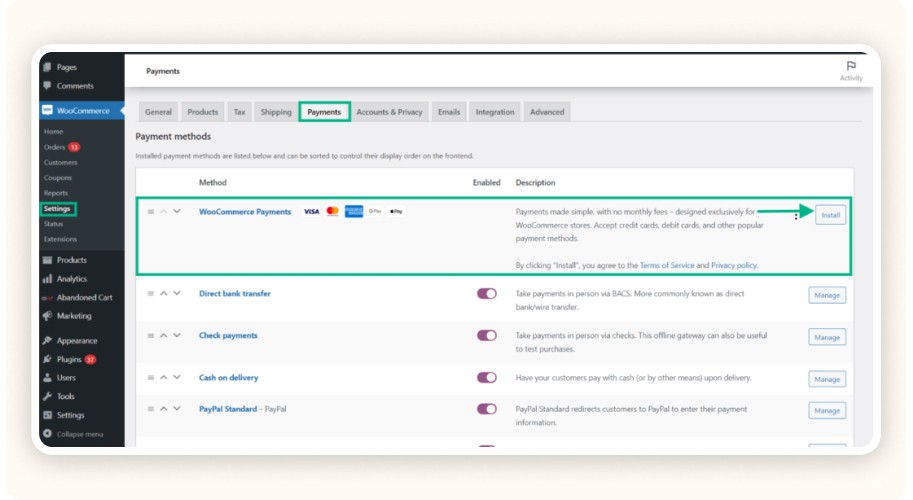
A smooth payment system and clear shipping options dramatically reduce cart abandonment. This step builds trust and secures your first sales on a WordPress dropshipping store.
Choose your payment gateways
Install at least one reliable gateway to accept payments on your WordPress store. The best options include:
Stripe: fast, simple, supports all major cards
PayPal: essential for international customers
WooPayments: WooCommerce’s native option, very intuitive
Install the plugin, connect your account, then run a test transaction. If possible, activate multiple payment methods, this increases trust and boosts conversions.
Configure your shipping methods
Go to WooCommerce > Settings > Shipping to set your shipping zones. Then choose your methods:
Flat rate: fixed fee, easy to manage
Free shipping: strong marketing advantage (just include the cost in your pricing)
Zone-based shipping: different rates based on region
Example: USA = $5, Europe = $9, Rest of World = $15.
Automate VAT collection
Enable WooCommerce Tax to automatically calculate VAT based on customer location.
It integrates seamlessly with WooCommerce and prevents compliance errors.
Optimize the checkout interface
Make sure your checkout page is:
fast-loading
mobile-friendly
minimal (no unnecessary fields)
A clean, simple checkout experience reduces friction, and abandoned carts.
Step 7: Add Legal & Trust Pages

Legal pages strengthen the credibility of your store. Without them, visitors lose trust, and you risk violating e-commerce regulations.
Add mandatory pages
To comply with online business laws and build trust, include these pages:
Legal Notice / Imprint
Terms & Conditions (T&C)
Privacy Policy
Refund Policy
You can write them yourself or use Complianz, a plugin that generates GDPR-compliant pages automatically based on your location.
Place these links in the footer so they’re accessible on every page.
Strengthen customer trust
Add an About page explaining:
who you are
why you launched your store
your mission and customer commitments
This creates an instant emotional connection with visitors.
Also link to your Trustpilot (or another review platform) profile. Even if it’s empty at first, it shows transparency, a powerful trust signal.
Use social proof from day one
Enable product reviews immediately. Add visible trust badges on each product page:
secure payment
fast shipping
30-day guarantee
Small details like these greatly improve credibility and conversions.
Step 5: Add and Optimize Your Products
There are two ways to add products:
Automatic import via DSers, Spocket, Syncee
Manual import using CSV or manual entry
With plugins, products are imported in one click, including titles, descriptions, images, and pricing. For local suppliers without integrations, use WooCommerce’s CSV import tool.
SEO-Optimized Titles & Descriptions

Your product pages must be optimized. Write clear titles using relevant keywords. Example: “Sport Smartwatch – Touchscreen & Heart Rate Monitor.”
For your product descriptions:
Start with a strong hook
Add benefits in bullet points
Include a short narrative (“perfect for…”)
Rewrite the supplier’s text, never copy/paste
Unique descriptions help you rank better and increase conversions.
HD Images & Trust Elements

Use 3 to 5 high-quality photos showing the product from different angles. Include lifestyle photos when possible to show real-world use.
Add trust-boosting elements:
Secure payment icons
Free shipping badge
30-day guarantee
24/7 customer support
If you use an automatic import plugin, double-check the stock levels to avoid cancellations.
Step 6: Set Up Payments and Shipping

A smooth payment system and clear shipping options dramatically reduce cart abandonment. This step builds trust and secures your first sales on a WordPress dropshipping store.
Choose your payment gateways
Install at least one reliable gateway to accept payments on your WordPress store. The best options include:
Stripe: fast, simple, supports all major cards
PayPal: essential for international customers
WooPayments: WooCommerce’s native option, very intuitive
Install the plugin, connect your account, then run a test transaction. If possible, activate multiple payment methods, this increases trust and boosts conversions.
Configure your shipping methods
Go to WooCommerce > Settings > Shipping to set your shipping zones. Then choose your methods:
Flat rate: fixed fee, easy to manage
Free shipping: strong marketing advantage (just include the cost in your pricing)
Zone-based shipping: different rates based on region
Example: USA = $5, Europe = $9, Rest of World = $15.
Automate VAT collection
Enable WooCommerce Tax to automatically calculate VAT based on customer location.
It integrates seamlessly with WooCommerce and prevents compliance errors.
Optimize the checkout interface
Make sure your checkout page is:
fast-loading
mobile-friendly
minimal (no unnecessary fields)
A clean, simple checkout experience reduces friction, and abandoned carts.
Step 7: Add Legal & Trust Pages

Legal pages strengthen the credibility of your store. Without them, visitors lose trust, and you risk violating e-commerce regulations.
Add mandatory pages
To comply with online business laws and build trust, include these pages:
Legal Notice / Imprint
Terms & Conditions (T&C)
Privacy Policy
Refund Policy
You can write them yourself or use Complianz, a plugin that generates GDPR-compliant pages automatically based on your location.
Place these links in the footer so they’re accessible on every page.
Strengthen customer trust
Add an About page explaining:
who you are
why you launched your store
your mission and customer commitments
This creates an instant emotional connection with visitors.
Also link to your Trustpilot (or another review platform) profile. Even if it’s empty at first, it shows transparency, a powerful trust signal.
Use social proof from day one
Enable product reviews immediately. Add visible trust badges on each product page:
secure payment
fast shipping
30-day guarantee
Small details like these greatly improve credibility and conversions.
Step 5: Add and Optimize Your Products
There are two ways to add products:
Automatic import via DSers, Spocket, Syncee
Manual import using CSV or manual entry
With plugins, products are imported in one click, including titles, descriptions, images, and pricing. For local suppliers without integrations, use WooCommerce’s CSV import tool.
SEO-Optimized Titles & Descriptions

Your product pages must be optimized. Write clear titles using relevant keywords. Example: “Sport Smartwatch – Touchscreen & Heart Rate Monitor.”
For your product descriptions:
Start with a strong hook
Add benefits in bullet points
Include a short narrative (“perfect for…”)
Rewrite the supplier’s text, never copy/paste
Unique descriptions help you rank better and increase conversions.
HD Images & Trust Elements

Use 3 to 5 high-quality photos showing the product from different angles. Include lifestyle photos when possible to show real-world use.
Add trust-boosting elements:
Secure payment icons
Free shipping badge
30-day guarantee
24/7 customer support
If you use an automatic import plugin, double-check the stock levels to avoid cancellations.
Step 6: Set Up Payments and Shipping

A smooth payment system and clear shipping options dramatically reduce cart abandonment. This step builds trust and secures your first sales on a WordPress dropshipping store.
Choose your payment gateways
Install at least one reliable gateway to accept payments on your WordPress store. The best options include:
Stripe: fast, simple, supports all major cards
PayPal: essential for international customers
WooPayments: WooCommerce’s native option, very intuitive
Install the plugin, connect your account, then run a test transaction. If possible, activate multiple payment methods, this increases trust and boosts conversions.
Configure your shipping methods
Go to WooCommerce > Settings > Shipping to set your shipping zones. Then choose your methods:
Flat rate: fixed fee, easy to manage
Free shipping: strong marketing advantage (just include the cost in your pricing)
Zone-based shipping: different rates based on region
Example: USA = $5, Europe = $9, Rest of World = $15.
Automate VAT collection
Enable WooCommerce Tax to automatically calculate VAT based on customer location.
It integrates seamlessly with WooCommerce and prevents compliance errors.
Optimize the checkout interface
Make sure your checkout page is:
fast-loading
mobile-friendly
minimal (no unnecessary fields)
A clean, simple checkout experience reduces friction, and abandoned carts.
Step 7: Add Legal & Trust Pages

Legal pages strengthen the credibility of your store. Without them, visitors lose trust, and you risk violating e-commerce regulations.
Add mandatory pages
To comply with online business laws and build trust, include these pages:
Legal Notice / Imprint
Terms & Conditions (T&C)
Privacy Policy
Refund Policy
You can write them yourself or use Complianz, a plugin that generates GDPR-compliant pages automatically based on your location.
Place these links in the footer so they’re accessible on every page.
Strengthen customer trust
Add an About page explaining:
who you are
why you launched your store
your mission and customer commitments
This creates an instant emotional connection with visitors.
Also link to your Trustpilot (or another review platform) profile. Even if it’s empty at first, it shows transparency, a powerful trust signal.
Use social proof from day one
Enable product reviews immediately. Add visible trust badges on each product page:
secure payment
fast shipping
30-day guarantee
Small details like these greatly improve credibility and conversions.
Step 5: Add and Optimize Your Products
There are two ways to add products:
Automatic import via DSers, Spocket, Syncee
Manual import using CSV or manual entry
With plugins, products are imported in one click, including titles, descriptions, images, and pricing. For local suppliers without integrations, use WooCommerce’s CSV import tool.
SEO-Optimized Titles & Descriptions

Your product pages must be optimized. Write clear titles using relevant keywords. Example: “Sport Smartwatch – Touchscreen & Heart Rate Monitor.”
For your product descriptions:
Start with a strong hook
Add benefits in bullet points
Include a short narrative (“perfect for…”)
Rewrite the supplier’s text, never copy/paste
Unique descriptions help you rank better and increase conversions.
HD Images & Trust Elements

Use 3 to 5 high-quality photos showing the product from different angles. Include lifestyle photos when possible to show real-world use.
Add trust-boosting elements:
Secure payment icons
Free shipping badge
30-day guarantee
24/7 customer support
If you use an automatic import plugin, double-check the stock levels to avoid cancellations.
Step 6: Set Up Payments and Shipping

A smooth payment system and clear shipping options dramatically reduce cart abandonment. This step builds trust and secures your first sales on a WordPress dropshipping store.
Choose your payment gateways
Install at least one reliable gateway to accept payments on your WordPress store. The best options include:
Stripe: fast, simple, supports all major cards
PayPal: essential for international customers
WooPayments: WooCommerce’s native option, very intuitive
Install the plugin, connect your account, then run a test transaction. If possible, activate multiple payment methods, this increases trust and boosts conversions.
Configure your shipping methods
Go to WooCommerce > Settings > Shipping to set your shipping zones. Then choose your methods:
Flat rate: fixed fee, easy to manage
Free shipping: strong marketing advantage (just include the cost in your pricing)
Zone-based shipping: different rates based on region
Example: USA = $5, Europe = $9, Rest of World = $15.
Automate VAT collection
Enable WooCommerce Tax to automatically calculate VAT based on customer location.
It integrates seamlessly with WooCommerce and prevents compliance errors.
Optimize the checkout interface
Make sure your checkout page is:
fast-loading
mobile-friendly
minimal (no unnecessary fields)
A clean, simple checkout experience reduces friction, and abandoned carts.
Step 7: Add Legal & Trust Pages

Legal pages strengthen the credibility of your store. Without them, visitors lose trust, and you risk violating e-commerce regulations.
Add mandatory pages
To comply with online business laws and build trust, include these pages:
Legal Notice / Imprint
Terms & Conditions (T&C)
Privacy Policy
Refund Policy
You can write them yourself or use Complianz, a plugin that generates GDPR-compliant pages automatically based on your location.
Place these links in the footer so they’re accessible on every page.
Strengthen customer trust
Add an About page explaining:
who you are
why you launched your store
your mission and customer commitments
This creates an instant emotional connection with visitors.
Also link to your Trustpilot (or another review platform) profile. Even if it’s empty at first, it shows transparency, a powerful trust signal.
Use social proof from day one
Enable product reviews immediately. Add visible trust badges on each product page:
secure payment
fast shipping
30-day guarantee
Small details like these greatly improve credibility and conversions.
Step 5: Add and Optimize Your Products
There are two ways to add products:
Automatic import via DSers, Spocket, Syncee
Manual import using CSV or manual entry
With plugins, products are imported in one click, including titles, descriptions, images, and pricing. For local suppliers without integrations, use WooCommerce’s CSV import tool.
SEO-Optimized Titles & Descriptions

Your product pages must be optimized. Write clear titles using relevant keywords. Example: “Sport Smartwatch – Touchscreen & Heart Rate Monitor.”
For your product descriptions:
Start with a strong hook
Add benefits in bullet points
Include a short narrative (“perfect for…”)
Rewrite the supplier’s text, never copy/paste
Unique descriptions help you rank better and increase conversions.
HD Images & Trust Elements

Use 3 to 5 high-quality photos showing the product from different angles. Include lifestyle photos when possible to show real-world use.
Add trust-boosting elements:
Secure payment icons
Free shipping badge
30-day guarantee
24/7 customer support
If you use an automatic import plugin, double-check the stock levels to avoid cancellations.
Step 6: Set Up Payments and Shipping

A smooth payment system and clear shipping options dramatically reduce cart abandonment. This step builds trust and secures your first sales on a WordPress dropshipping store.
Choose your payment gateways
Install at least one reliable gateway to accept payments on your WordPress store. The best options include:
Stripe: fast, simple, supports all major cards
PayPal: essential for international customers
WooPayments: WooCommerce’s native option, very intuitive
Install the plugin, connect your account, then run a test transaction. If possible, activate multiple payment methods, this increases trust and boosts conversions.
Configure your shipping methods
Go to WooCommerce > Settings > Shipping to set your shipping zones. Then choose your methods:
Flat rate: fixed fee, easy to manage
Free shipping: strong marketing advantage (just include the cost in your pricing)
Zone-based shipping: different rates based on region
Example: USA = $5, Europe = $9, Rest of World = $15.
Automate VAT collection
Enable WooCommerce Tax to automatically calculate VAT based on customer location.
It integrates seamlessly with WooCommerce and prevents compliance errors.
Optimize the checkout interface
Make sure your checkout page is:
fast-loading
mobile-friendly
minimal (no unnecessary fields)
A clean, simple checkout experience reduces friction, and abandoned carts.
Step 7: Add Legal & Trust Pages

Legal pages strengthen the credibility of your store. Without them, visitors lose trust, and you risk violating e-commerce regulations.
Add mandatory pages
To comply with online business laws and build trust, include these pages:
Legal Notice / Imprint
Terms & Conditions (T&C)
Privacy Policy
Refund Policy
You can write them yourself or use Complianz, a plugin that generates GDPR-compliant pages automatically based on your location.
Place these links in the footer so they’re accessible on every page.
Strengthen customer trust
Add an About page explaining:
who you are
why you launched your store
your mission and customer commitments
This creates an instant emotional connection with visitors.
Also link to your Trustpilot (or another review platform) profile. Even if it’s empty at first, it shows transparency, a powerful trust signal.
Use social proof from day one
Enable product reviews immediately. Add visible trust badges on each product page:
secure payment
fast shipping
30-day guarantee
Small details like these greatly improve credibility and conversions.
Step 5: Add and Optimize Your Products
There are two ways to add products:
Automatic import via DSers, Spocket, Syncee
Manual import using CSV or manual entry
With plugins, products are imported in one click, including titles, descriptions, images, and pricing. For local suppliers without integrations, use WooCommerce’s CSV import tool.
SEO-Optimized Titles & Descriptions

Your product pages must be optimized. Write clear titles using relevant keywords. Example: “Sport Smartwatch – Touchscreen & Heart Rate Monitor.”
For your product descriptions:
Start with a strong hook
Add benefits in bullet points
Include a short narrative (“perfect for…”)
Rewrite the supplier’s text, never copy/paste
Unique descriptions help you rank better and increase conversions.
HD Images & Trust Elements

Use 3 to 5 high-quality photos showing the product from different angles. Include lifestyle photos when possible to show real-world use.
Add trust-boosting elements:
Secure payment icons
Free shipping badge
30-day guarantee
24/7 customer support
If you use an automatic import plugin, double-check the stock levels to avoid cancellations.
Step 6: Set Up Payments and Shipping

A smooth payment system and clear shipping options dramatically reduce cart abandonment. This step builds trust and secures your first sales on a WordPress dropshipping store.
Choose your payment gateways
Install at least one reliable gateway to accept payments on your WordPress store. The best options include:
Stripe: fast, simple, supports all major cards
PayPal: essential for international customers
WooPayments: WooCommerce’s native option, very intuitive
Install the plugin, connect your account, then run a test transaction. If possible, activate multiple payment methods, this increases trust and boosts conversions.
Configure your shipping methods
Go to WooCommerce > Settings > Shipping to set your shipping zones. Then choose your methods:
Flat rate: fixed fee, easy to manage
Free shipping: strong marketing advantage (just include the cost in your pricing)
Zone-based shipping: different rates based on region
Example: USA = $5, Europe = $9, Rest of World = $15.
Automate VAT collection
Enable WooCommerce Tax to automatically calculate VAT based on customer location.
It integrates seamlessly with WooCommerce and prevents compliance errors.
Optimize the checkout interface
Make sure your checkout page is:
fast-loading
mobile-friendly
minimal (no unnecessary fields)
A clean, simple checkout experience reduces friction, and abandoned carts.
Step 7: Add Legal & Trust Pages

Legal pages strengthen the credibility of your store. Without them, visitors lose trust, and you risk violating e-commerce regulations.
Add mandatory pages
To comply with online business laws and build trust, include these pages:
Legal Notice / Imprint
Terms & Conditions (T&C)
Privacy Policy
Refund Policy
You can write them yourself or use Complianz, a plugin that generates GDPR-compliant pages automatically based on your location.
Place these links in the footer so they’re accessible on every page.
Strengthen customer trust
Add an About page explaining:
who you are
why you launched your store
your mission and customer commitments
This creates an instant emotional connection with visitors.
Also link to your Trustpilot (or another review platform) profile. Even if it’s empty at first, it shows transparency, a powerful trust signal.
Use social proof from day one
Enable product reviews immediately. Add visible trust badges on each product page:
secure payment
fast shipping
30-day guarantee
Small details like these greatly improve credibility and conversions.
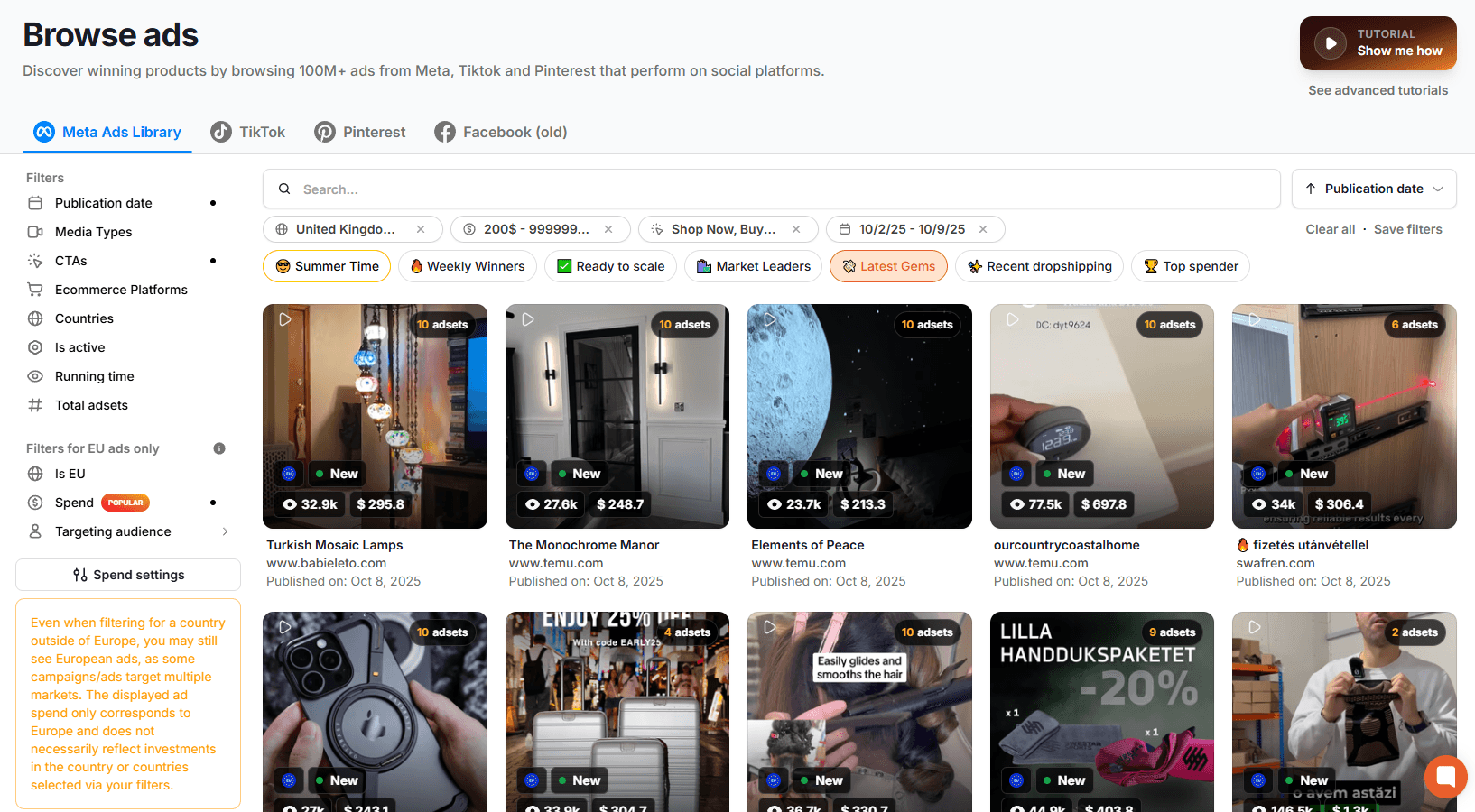
Top 10 Facebook ads
Top 10 Facebook ads
Top 10 Facebook ads
Top 10 Facebook ads
Top 10 Facebook ads
Top 10 Facebook ads
Step 8: Optimize Your Store’s SEO and Speed
A fast, well-optimized WordPress dropshipping store converts more, and without increasing your ad budget. Here’s how to improve your SEO and loading speed from day one.
Optimize SEO from the start
Install a free SEO plugin like Rank Math or Yoast SEO to:
customize your H1, H2, and other heading tags
set short, clean URL slugs (example: /wooden-watch-men)
write optimized meta descriptions for every page
generate a sitemap and submit it to Google Search Console
Also, build a strong internal linking structure by linking your product pages to each other or to relevant blog posts. This helps search engines crawl and rank your store more effectively.
Boost your website loading speed
Loading speed directly impacts your rankings and your sales. To improve site performance:
compress images into WebP using ShortPixel or Imagify
enable caching with LiteSpeed Cache (free) or WP Rocket (paid)
remove unnecessary plugins to avoid slowing down your site
choose a lightweight, fast WordPress theme
And don’t forget mobile performance. Over 60% of customers shop from their phones, so your WordPress dropshipping site must be mobile-friendly.
Step 9: Launch Your Store and Start Marketing

Your store is ready, your products are live, now it’s time for the most important step: bringing in customers and converting traffic into sales.
Activate your first marketing channels
Your store is online, now drive traffic. Here’s where to start:
create product videos for TikTok, Instagram Reels, and Pinterest
use short, dynamic formats showing real product use
collaborate with micro-influencers (under 20k followers) to test your offer affordably
Video-based marketing works extremely well for WordPress dropshipping because it builds trust fast.
Start email marketing
Collect emails from the first visitors using pop-ups (ex: promo code) with Klaviyo or Mailchimp. Then automate essential flows:
abandoned cart reminders
order confirmations
product follow-ups
Email remains one of the highest-ROI channels in e-commerce, even for beginners learning how to dropship with WordPress.
Test paid advertising
Once you have a few validated sales, start testing ads:
Google Shopping for high-intent buyers
Meta Ads (Facebook/Instagram) for targeted audiences
Begin with a small daily budget ($10–$20) and analyze results to optimize.
Don’t forget SEO
Long-term traffic comes from search engines. Add a blog section and publish SEO-optimized articles around your niche and products. This helps you rank naturally, without relying solely on ads, an essential step when learning how to create a dropshipping website with WordPress.
Common Mistakes to Avoid With WordPress Dropshipping

Launching a WordPress dropshipping store is simple, but some mistakes can destroy your performance fast. Avoid these common pitfalls to keep your business profitable.
Installing too many plugins
Every plugin adds extra code that slows down your website. A slow WordPress dropshipping store leads to:
higher bounce rates
lower conversions
weaker SEO
Stick to essential plugins only (payments, dropshipping, SEO). Remove anything you don’t actively use.
Ignoring mobile optimization
Most shoppers buy from their phone. If your store isn’t mobile-friendly, you lose sales instantly.
To avoid this:
choose a responsive WordPress theme
test your entire customer journey on mobile
check loading speed on 4G
Mobile experience matters just as much as product quality.
Not testing your products
Many beginners add a product without ever seeing it. Result:
disappointed customers
high return rates
negative reviews
Always order a sample first. Check:
real quality
packaging
actual delivery time
This step is essential when learning how to dropship with WordPress.
Neglecting customer support
Since you don’t handle shipping, customer service becomes your main trust builder.
Provide excellent support by:
offering live chat
responding within 24 hours
creating a clear FAQ page
Slow replies = abandoned carts.
Not tracking performance metrics
If you don’t measure your results, you can’t improve your store.
Install Google Analytics and monitor:
conversion rate
cart abandonment rate
top-converting pages
These metrics help you optimize your WordPress dropshipping business and scale more efficiently.
Step 8: Optimize Your Store’s SEO and Speed

A fast, well-optimized WordPress dropshipping store converts more, and without increasing your ad budget. Here’s how to improve your SEO and loading speed from day one.
Optimize SEO from the start
Install a free SEO plugin like Rank Math or Yoast SEO to:
customize your H1, H2, and other heading tags
set short, clean URL slugs (example: /wooden-watch-men)
write optimized meta descriptions for every page
generate a sitemap and submit it to Google Search Console
Also, build a strong internal linking structure by linking your product pages to each other or to relevant blog posts. This helps search engines crawl and rank your store more effectively.
Boost your website loading speed

Loading speed directly impacts your rankings and your sales. To improve site performance:
compress images into WebP using ShortPixel or Imagify
enable caching with LiteSpeed Cache (free) or WP Rocket (paid)
remove unnecessary plugins to avoid slowing down your site
choose a lightweight, fast WordPress theme
And don’t forget mobile performance. Over 60% of customers shop from their phones, so your WordPress dropshipping site must be mobile-friendly.
Step 9: Launch Your Store and Start Marketing

Your store is ready, your products are live, now it’s time for the most important step: bringing in customers and converting traffic into sales.
Activate your first marketing channels
Your store is online, now drive traffic. Here’s where to start:
create product videos for TikTok, Instagram Reels, and Pinterest
use short, dynamic formats showing real product use
collaborate with micro-influencers (under 20k followers) to test your offer affordably
Video-based marketing works extremely well for WordPress dropshipping because it builds trust fast.
Start email marketing
Collect emails from the first visitors using pop-ups (ex: promo code) with Klaviyo or Mailchimp. Then automate essential flows:
abandoned cart reminders
order confirmations
product follow-ups
Email remains one of the highest-ROI channels in e-commerce, even for beginners learning how to dropship with WordPress.
Test paid advertising
Once you have a few validated sales, start testing ads:
Google Shopping for high-intent buyers
Meta Ads (Facebook/Instagram) for targeted audiences
Begin with a small daily budget ($10–$20) and analyze results to optimize.
Don’t forget SEO
Long-term traffic comes from search engines. Add a blog section and publish SEO-optimized articles around your niche and products. This helps you rank naturally, without relying solely on ads, an essential step when learning how to create a dropshipping website with WordPress.
Common Mistakes to Avoid With WordPress Dropshipping

Launching a WordPress dropshipping store is simple, but some mistakes can destroy your performance fast. Avoid these common pitfalls to keep your business profitable.
Installing too many plugins
Every plugin adds extra code that slows down your website. A slow WordPress dropshipping store leads to:
higher bounce rates
lower conversions
weaker SEO
Stick to essential plugins only (payments, dropshipping, SEO). Remove anything you don’t actively use.
Ignoring mobile optimization
Most shoppers buy from their phone. If your store isn’t mobile-friendly, you lose sales instantly.
To avoid this:
choose a responsive WordPress theme
test your entire customer journey on mobile
check loading speed on 4G
Mobile experience matters just as much as product quality.
Not testing your products
Many beginners add a product without ever seeing it. Result:
disappointed customers
high return rates
negative reviews
Always order a sample first. Check:
real quality
packaging
actual delivery time
This step is essential when learning how to dropship with WordPress.
Neglecting customer support
Since you don’t handle shipping, customer service becomes your main trust builder.
Provide excellent support by:
offering live chat
responding within 24 hours
creating a clear FAQ page
Slow replies = abandoned carts.
Not tracking performance metrics
If you don’t measure your results, you can’t improve your store.
Install Google Analytics and monitor:
conversion rate
cart abandonment rate
top-converting pages
These metrics help you optimize your WordPress dropshipping business and scale more efficiently.
Step 8: Optimize Your Store’s SEO and Speed

A fast, well-optimized WordPress dropshipping store converts more, and without increasing your ad budget. Here’s how to improve your SEO and loading speed from day one.
Optimize SEO from the start
Install a free SEO plugin like Rank Math or Yoast SEO to:
customize your H1, H2, and other heading tags
set short, clean URL slugs (example: /wooden-watch-men)
write optimized meta descriptions for every page
generate a sitemap and submit it to Google Search Console
Also, build a strong internal linking structure by linking your product pages to each other or to relevant blog posts. This helps search engines crawl and rank your store more effectively.
Boost your website loading speed

Loading speed directly impacts your rankings and your sales. To improve site performance:
compress images into WebP using ShortPixel or Imagify
enable caching with LiteSpeed Cache (free) or WP Rocket (paid)
remove unnecessary plugins to avoid slowing down your site
choose a lightweight, fast WordPress theme
And don’t forget mobile performance. Over 60% of customers shop from their phones, so your WordPress dropshipping site must be mobile-friendly.
Step 9: Launch Your Store and Start Marketing

Your store is ready, your products are live, now it’s time for the most important step: bringing in customers and converting traffic into sales.
Activate your first marketing channels
Your store is online, now drive traffic. Here’s where to start:
create product videos for TikTok, Instagram Reels, and Pinterest
use short, dynamic formats showing real product use
collaborate with micro-influencers (under 20k followers) to test your offer affordably
Video-based marketing works extremely well for WordPress dropshipping because it builds trust fast.
Start email marketing
Collect emails from the first visitors using pop-ups (ex: promo code) with Klaviyo or Mailchimp. Then automate essential flows:
abandoned cart reminders
order confirmations
product follow-ups
Email remains one of the highest-ROI channels in e-commerce, even for beginners learning how to dropship with WordPress.
Test paid advertising
Once you have a few validated sales, start testing ads:
Google Shopping for high-intent buyers
Meta Ads (Facebook/Instagram) for targeted audiences
Begin with a small daily budget ($10–$20) and analyze results to optimize.
Don’t forget SEO
Long-term traffic comes from search engines. Add a blog section and publish SEO-optimized articles around your niche and products. This helps you rank naturally, without relying solely on ads, an essential step when learning how to create a dropshipping website with WordPress.
Common Mistakes to Avoid With WordPress Dropshipping

Launching a WordPress dropshipping store is simple, but some mistakes can destroy your performance fast. Avoid these common pitfalls to keep your business profitable.
Installing too many plugins
Every plugin adds extra code that slows down your website. A slow WordPress dropshipping store leads to:
higher bounce rates
lower conversions
weaker SEO
Stick to essential plugins only (payments, dropshipping, SEO). Remove anything you don’t actively use.
Ignoring mobile optimization
Most shoppers buy from their phone. If your store isn’t mobile-friendly, you lose sales instantly.
To avoid this:
choose a responsive WordPress theme
test your entire customer journey on mobile
check loading speed on 4G
Mobile experience matters just as much as product quality.
Not testing your products
Many beginners add a product without ever seeing it. Result:
disappointed customers
high return rates
negative reviews
Always order a sample first. Check:
real quality
packaging
actual delivery time
This step is essential when learning how to dropship with WordPress.
Neglecting customer support
Since you don’t handle shipping, customer service becomes your main trust builder.
Provide excellent support by:
offering live chat
responding within 24 hours
creating a clear FAQ page
Slow replies = abandoned carts.
Not tracking performance metrics
If you don’t measure your results, you can’t improve your store.
Install Google Analytics and monitor:
conversion rate
cart abandonment rate
top-converting pages
These metrics help you optimize your WordPress dropshipping business and scale more efficiently.
Step 8: Optimize Your Store’s SEO and Speed

A fast, well-optimized WordPress dropshipping store converts more, and without increasing your ad budget. Here’s how to improve your SEO and loading speed from day one.
Optimize SEO from the start
Install a free SEO plugin like Rank Math or Yoast SEO to:
customize your H1, H2, and other heading tags
set short, clean URL slugs (example: /wooden-watch-men)
write optimized meta descriptions for every page
generate a sitemap and submit it to Google Search Console
Also, build a strong internal linking structure by linking your product pages to each other or to relevant blog posts. This helps search engines crawl and rank your store more effectively.
Boost your website loading speed

Loading speed directly impacts your rankings and your sales. To improve site performance:
compress images into WebP using ShortPixel or Imagify
enable caching with LiteSpeed Cache (free) or WP Rocket (paid)
remove unnecessary plugins to avoid slowing down your site
choose a lightweight, fast WordPress theme
And don’t forget mobile performance. Over 60% of customers shop from their phones, so your WordPress dropshipping site must be mobile-friendly.
Step 9: Launch Your Store and Start Marketing

Your store is ready, your products are live, now it’s time for the most important step: bringing in customers and converting traffic into sales.
Activate your first marketing channels
Your store is online, now drive traffic. Here’s where to start:
create product videos for TikTok, Instagram Reels, and Pinterest
use short, dynamic formats showing real product use
collaborate with micro-influencers (under 20k followers) to test your offer affordably
Video-based marketing works extremely well for WordPress dropshipping because it builds trust fast.
Start email marketing
Collect emails from the first visitors using pop-ups (ex: promo code) with Klaviyo or Mailchimp. Then automate essential flows:
abandoned cart reminders
order confirmations
product follow-ups
Email remains one of the highest-ROI channels in e-commerce, even for beginners learning how to dropship with WordPress.
Test paid advertising
Once you have a few validated sales, start testing ads:
Google Shopping for high-intent buyers
Meta Ads (Facebook/Instagram) for targeted audiences
Begin with a small daily budget ($10–$20) and analyze results to optimize.
Don’t forget SEO
Long-term traffic comes from search engines. Add a blog section and publish SEO-optimized articles around your niche and products. This helps you rank naturally, without relying solely on ads, an essential step when learning how to create a dropshipping website with WordPress.
Common Mistakes to Avoid With WordPress Dropshipping

Launching a WordPress dropshipping store is simple, but some mistakes can destroy your performance fast. Avoid these common pitfalls to keep your business profitable.
Installing too many plugins
Every plugin adds extra code that slows down your website. A slow WordPress dropshipping store leads to:
higher bounce rates
lower conversions
weaker SEO
Stick to essential plugins only (payments, dropshipping, SEO). Remove anything you don’t actively use.
Ignoring mobile optimization
Most shoppers buy from their phone. If your store isn’t mobile-friendly, you lose sales instantly.
To avoid this:
choose a responsive WordPress theme
test your entire customer journey on mobile
check loading speed on 4G
Mobile experience matters just as much as product quality.
Not testing your products
Many beginners add a product without ever seeing it. Result:
disappointed customers
high return rates
negative reviews
Always order a sample first. Check:
real quality
packaging
actual delivery time
This step is essential when learning how to dropship with WordPress.
Neglecting customer support
Since you don’t handle shipping, customer service becomes your main trust builder.
Provide excellent support by:
offering live chat
responding within 24 hours
creating a clear FAQ page
Slow replies = abandoned carts.
Not tracking performance metrics
If you don’t measure your results, you can’t improve your store.
Install Google Analytics and monitor:
conversion rate
cart abandonment rate
top-converting pages
These metrics help you optimize your WordPress dropshipping business and scale more efficiently.
Step 8: Optimize Your Store’s SEO and Speed

A fast, well-optimized WordPress dropshipping store converts more, and without increasing your ad budget. Here’s how to improve your SEO and loading speed from day one.
Optimize SEO from the start
Install a free SEO plugin like Rank Math or Yoast SEO to:
customize your H1, H2, and other heading tags
set short, clean URL slugs (example: /wooden-watch-men)
write optimized meta descriptions for every page
generate a sitemap and submit it to Google Search Console
Also, build a strong internal linking structure by linking your product pages to each other or to relevant blog posts. This helps search engines crawl and rank your store more effectively.
Boost your website loading speed

Loading speed directly impacts your rankings and your sales. To improve site performance:
compress images into WebP using ShortPixel or Imagify
enable caching with LiteSpeed Cache (free) or WP Rocket (paid)
remove unnecessary plugins to avoid slowing down your site
choose a lightweight, fast WordPress theme
And don’t forget mobile performance. Over 60% of customers shop from their phones, so your WordPress dropshipping site must be mobile-friendly.
Step 9: Launch Your Store and Start Marketing

Your store is ready, your products are live, now it’s time for the most important step: bringing in customers and converting traffic into sales.
Activate your first marketing channels
Your store is online, now drive traffic. Here’s where to start:
create product videos for TikTok, Instagram Reels, and Pinterest
use short, dynamic formats showing real product use
collaborate with micro-influencers (under 20k followers) to test your offer affordably
Video-based marketing works extremely well for WordPress dropshipping because it builds trust fast.
Start email marketing
Collect emails from the first visitors using pop-ups (ex: promo code) with Klaviyo or Mailchimp. Then automate essential flows:
abandoned cart reminders
order confirmations
product follow-ups
Email remains one of the highest-ROI channels in e-commerce, even for beginners learning how to dropship with WordPress.
Test paid advertising
Once you have a few validated sales, start testing ads:
Google Shopping for high-intent buyers
Meta Ads (Facebook/Instagram) for targeted audiences
Begin with a small daily budget ($10–$20) and analyze results to optimize.
Don’t forget SEO
Long-term traffic comes from search engines. Add a blog section and publish SEO-optimized articles around your niche and products. This helps you rank naturally, without relying solely on ads, an essential step when learning how to create a dropshipping website with WordPress.
Common Mistakes to Avoid With WordPress Dropshipping

Launching a WordPress dropshipping store is simple, but some mistakes can destroy your performance fast. Avoid these common pitfalls to keep your business profitable.
Installing too many plugins
Every plugin adds extra code that slows down your website. A slow WordPress dropshipping store leads to:
higher bounce rates
lower conversions
weaker SEO
Stick to essential plugins only (payments, dropshipping, SEO). Remove anything you don’t actively use.
Ignoring mobile optimization
Most shoppers buy from their phone. If your store isn’t mobile-friendly, you lose sales instantly.
To avoid this:
choose a responsive WordPress theme
test your entire customer journey on mobile
check loading speed on 4G
Mobile experience matters just as much as product quality.
Not testing your products
Many beginners add a product without ever seeing it. Result:
disappointed customers
high return rates
negative reviews
Always order a sample first. Check:
real quality
packaging
actual delivery time
This step is essential when learning how to dropship with WordPress.
Neglecting customer support
Since you don’t handle shipping, customer service becomes your main trust builder.
Provide excellent support by:
offering live chat
responding within 24 hours
creating a clear FAQ page
Slow replies = abandoned carts.
Not tracking performance metrics
If you don’t measure your results, you can’t improve your store.
Install Google Analytics and monitor:
conversion rate
cart abandonment rate
top-converting pages
These metrics help you optimize your WordPress dropshipping business and scale more efficiently.
Step 8: Optimize Your Store’s SEO and Speed

A fast, well-optimized WordPress dropshipping store converts more, and without increasing your ad budget. Here’s how to improve your SEO and loading speed from day one.
Optimize SEO from the start
Install a free SEO plugin like Rank Math or Yoast SEO to:
customize your H1, H2, and other heading tags
set short, clean URL slugs (example: /wooden-watch-men)
write optimized meta descriptions for every page
generate a sitemap and submit it to Google Search Console
Also, build a strong internal linking structure by linking your product pages to each other or to relevant blog posts. This helps search engines crawl and rank your store more effectively.
Boost your website loading speed

Loading speed directly impacts your rankings and your sales. To improve site performance:
compress images into WebP using ShortPixel or Imagify
enable caching with LiteSpeed Cache (free) or WP Rocket (paid)
remove unnecessary plugins to avoid slowing down your site
choose a lightweight, fast WordPress theme
And don’t forget mobile performance. Over 60% of customers shop from their phones, so your WordPress dropshipping site must be mobile-friendly.
Step 9: Launch Your Store and Start Marketing

Your store is ready, your products are live, now it’s time for the most important step: bringing in customers and converting traffic into sales.
Activate your first marketing channels
Your store is online, now drive traffic. Here’s where to start:
create product videos for TikTok, Instagram Reels, and Pinterest
use short, dynamic formats showing real product use
collaborate with micro-influencers (under 20k followers) to test your offer affordably
Video-based marketing works extremely well for WordPress dropshipping because it builds trust fast.
Start email marketing
Collect emails from the first visitors using pop-ups (ex: promo code) with Klaviyo or Mailchimp. Then automate essential flows:
abandoned cart reminders
order confirmations
product follow-ups
Email remains one of the highest-ROI channels in e-commerce, even for beginners learning how to dropship with WordPress.
Test paid advertising
Once you have a few validated sales, start testing ads:
Google Shopping for high-intent buyers
Meta Ads (Facebook/Instagram) for targeted audiences
Begin with a small daily budget ($10–$20) and analyze results to optimize.
Don’t forget SEO
Long-term traffic comes from search engines. Add a blog section and publish SEO-optimized articles around your niche and products. This helps you rank naturally, without relying solely on ads, an essential step when learning how to create a dropshipping website with WordPress.
Common Mistakes to Avoid With WordPress Dropshipping

Launching a WordPress dropshipping store is simple, but some mistakes can destroy your performance fast. Avoid these common pitfalls to keep your business profitable.
Installing too many plugins
Every plugin adds extra code that slows down your website. A slow WordPress dropshipping store leads to:
higher bounce rates
lower conversions
weaker SEO
Stick to essential plugins only (payments, dropshipping, SEO). Remove anything you don’t actively use.
Ignoring mobile optimization
Most shoppers buy from their phone. If your store isn’t mobile-friendly, you lose sales instantly.
To avoid this:
choose a responsive WordPress theme
test your entire customer journey on mobile
check loading speed on 4G
Mobile experience matters just as much as product quality.
Not testing your products
Many beginners add a product without ever seeing it. Result:
disappointed customers
high return rates
negative reviews
Always order a sample first. Check:
real quality
packaging
actual delivery time
This step is essential when learning how to dropship with WordPress.
Neglecting customer support
Since you don’t handle shipping, customer service becomes your main trust builder.
Provide excellent support by:
offering live chat
responding within 24 hours
creating a clear FAQ page
Slow replies = abandoned carts.
Not tracking performance metrics
If you don’t measure your results, you can’t improve your store.
Install Google Analytics and monitor:
conversion rate
cart abandonment rate
top-converting pages
These metrics help you optimize your WordPress dropshipping business and scale more efficiently.

Take a Shortcut
Intensive coaching, $1,000/day guaranteed or your money back


Take a Shortcut
Intensive coaching, $1,000/day guaranteed or your money back


Take a Shortcut
Intensive coaching, $1,000/day guaranteed or your money back


Take a Shortcut
Intensive coaching, $1,000/day guaranteed or your money back


Take a Shortcut
Intensive coaching, $1,000/day guaranteed or your money back


Take a Shortcut
Intensive coaching, $1,000/day guaranteed or your money back

Conclusion
With WordPress, you can launch a fully functional online store at low cost, without inventory and with total control. Thanks to WooCommerce and a few essential plugins, you can:
build a professional store
automate your order flow
scale quickly
stay flexible
Whether you’re a beginner or not, WordPress is a powerful, reliable option, as long as you follow the right steps. So pick your hosting, install the right tools, and launch your store today. It’s the perfect time to turn your idea into a profitable business
FAQ
How do I dropship with WordPress?
You can dropship with WordPress by installing WooCommerce, choosing a reliable hosting provider, adding a dropshipping plugin like Spocket or DSers, and importing products automatically. Then configure payments, shipping, SEO, and launch your marketing campaigns.
Is WordPress good for dropshipping?
Yes. WordPress + WooCommerce is one of the best platforms for dropshipping thanks to its flexibility, low startup cost, full customization, and compatibility with plugins like Spocket, DSers, and AliDropship. It’s ideal for beginners and advanced sellers.
How do I create a dropshipping website with WordPress?
To create a dropshipping website with WordPress, install WooCommerce, choose a fast theme like Astra or OceanWP, connect a dropshipping plugin, add SEO-optimized product pages, and configure payments and shipping. Finally, launch your store and start marketing.
Can I create a dropshipping website with WordPress for free?
Yes, you can start for free with WordPress and WooCommerce, but you’ll still need hosting and a domain. Many dropshipping plugins offer free plans, letting you start at low cost while scaling as your store grows.
Conclusion
With WordPress, you can launch a fully functional online store at low cost, without inventory and with total control. Thanks to WooCommerce and a few essential plugins, you can:
build a professional store
automate your order flow
scale quickly
stay flexible
Whether you’re a beginner or not, WordPress is a powerful, reliable option, as long as you follow the right steps. So pick your hosting, install the right tools, and launch your store today. It’s the perfect time to turn your idea into a profitable business
FAQ
How do I dropship with WordPress?
You can dropship with WordPress by installing WooCommerce, choosing a reliable hosting provider, adding a dropshipping plugin like Spocket or DSers, and importing products automatically. Then configure payments, shipping, SEO, and launch your marketing campaigns.
Is WordPress good for dropshipping?
Yes. WordPress + WooCommerce is one of the best platforms for dropshipping thanks to its flexibility, low startup cost, full customization, and compatibility with plugins like Spocket, DSers, and AliDropship. It’s ideal for beginners and advanced sellers.
How do I create a dropshipping website with WordPress?
To create a dropshipping website with WordPress, install WooCommerce, choose a fast theme like Astra or OceanWP, connect a dropshipping plugin, add SEO-optimized product pages, and configure payments and shipping. Finally, launch your store and start marketing.
Can I create a dropshipping website with WordPress for free?
Yes, you can start for free with WordPress and WooCommerce, but you’ll still need hosting and a domain. Many dropshipping plugins offer free plans, letting you start at low cost while scaling as your store grows.
Conclusion
With WordPress, you can launch a fully functional online store at low cost, without inventory and with total control. Thanks to WooCommerce and a few essential plugins, you can:
build a professional store
automate your order flow
scale quickly
stay flexible
Whether you’re a beginner or not, WordPress is a powerful, reliable option, as long as you follow the right steps. So pick your hosting, install the right tools, and launch your store today. It’s the perfect time to turn your idea into a profitable business
FAQ
How do I dropship with WordPress?
You can dropship with WordPress by installing WooCommerce, choosing a reliable hosting provider, adding a dropshipping plugin like Spocket or DSers, and importing products automatically. Then configure payments, shipping, SEO, and launch your marketing campaigns.
Is WordPress good for dropshipping?
Yes. WordPress + WooCommerce is one of the best platforms for dropshipping thanks to its flexibility, low startup cost, full customization, and compatibility with plugins like Spocket, DSers, and AliDropship. It’s ideal for beginners and advanced sellers.
How do I create a dropshipping website with WordPress?
To create a dropshipping website with WordPress, install WooCommerce, choose a fast theme like Astra or OceanWP, connect a dropshipping plugin, add SEO-optimized product pages, and configure payments and shipping. Finally, launch your store and start marketing.
Can I create a dropshipping website with WordPress for free?
Yes, you can start for free with WordPress and WooCommerce, but you’ll still need hosting and a domain. Many dropshipping plugins offer free plans, letting you start at low cost while scaling as your store grows.
Conclusion
With WordPress, you can launch a fully functional online store at low cost, without inventory and with total control. Thanks to WooCommerce and a few essential plugins, you can:
build a professional store
automate your order flow
scale quickly
stay flexible
Whether you’re a beginner or not, WordPress is a powerful, reliable option, as long as you follow the right steps. So pick your hosting, install the right tools, and launch your store today. It’s the perfect time to turn your idea into a profitable business
FAQ
How do I dropship with WordPress?
You can dropship with WordPress by installing WooCommerce, choosing a reliable hosting provider, adding a dropshipping plugin like Spocket or DSers, and importing products automatically. Then configure payments, shipping, SEO, and launch your marketing campaigns.
Is WordPress good for dropshipping?
Yes. WordPress + WooCommerce is one of the best platforms for dropshipping thanks to its flexibility, low startup cost, full customization, and compatibility with plugins like Spocket, DSers, and AliDropship. It’s ideal for beginners and advanced sellers.
How do I create a dropshipping website with WordPress?
To create a dropshipping website with WordPress, install WooCommerce, choose a fast theme like Astra or OceanWP, connect a dropshipping plugin, add SEO-optimized product pages, and configure payments and shipping. Finally, launch your store and start marketing.
Can I create a dropshipping website with WordPress for free?
Yes, you can start for free with WordPress and WooCommerce, but you’ll still need hosting and a domain. Many dropshipping plugins offer free plans, letting you start at low cost while scaling as your store grows.
Conclusion
With WordPress, you can launch a fully functional online store at low cost, without inventory and with total control. Thanks to WooCommerce and a few essential plugins, you can:
build a professional store
automate your order flow
scale quickly
stay flexible
Whether you’re a beginner or not, WordPress is a powerful, reliable option, as long as you follow the right steps. So pick your hosting, install the right tools, and launch your store today. It’s the perfect time to turn your idea into a profitable business
FAQ
How do I dropship with WordPress?
You can dropship with WordPress by installing WooCommerce, choosing a reliable hosting provider, adding a dropshipping plugin like Spocket or DSers, and importing products automatically. Then configure payments, shipping, SEO, and launch your marketing campaigns.
Is WordPress good for dropshipping?
Yes. WordPress + WooCommerce is one of the best platforms for dropshipping thanks to its flexibility, low startup cost, full customization, and compatibility with plugins like Spocket, DSers, and AliDropship. It’s ideal for beginners and advanced sellers.
How do I create a dropshipping website with WordPress?
To create a dropshipping website with WordPress, install WooCommerce, choose a fast theme like Astra or OceanWP, connect a dropshipping plugin, add SEO-optimized product pages, and configure payments and shipping. Finally, launch your store and start marketing.
Can I create a dropshipping website with WordPress for free?
Yes, you can start for free with WordPress and WooCommerce, but you’ll still need hosting and a domain. Many dropshipping plugins offer free plans, letting you start at low cost while scaling as your store grows.
Conclusion
With WordPress, you can launch a fully functional online store at low cost, without inventory and with total control. Thanks to WooCommerce and a few essential plugins, you can:
build a professional store
automate your order flow
scale quickly
stay flexible
Whether you’re a beginner or not, WordPress is a powerful, reliable option, as long as you follow the right steps. So pick your hosting, install the right tools, and launch your store today. It’s the perfect time to turn your idea into a profitable business
FAQ
How do I dropship with WordPress?
You can dropship with WordPress by installing WooCommerce, choosing a reliable hosting provider, adding a dropshipping plugin like Spocket or DSers, and importing products automatically. Then configure payments, shipping, SEO, and launch your marketing campaigns.
Is WordPress good for dropshipping?
Yes. WordPress + WooCommerce is one of the best platforms for dropshipping thanks to its flexibility, low startup cost, full customization, and compatibility with plugins like Spocket, DSers, and AliDropship. It’s ideal for beginners and advanced sellers.
How do I create a dropshipping website with WordPress?
To create a dropshipping website with WordPress, install WooCommerce, choose a fast theme like Astra or OceanWP, connect a dropshipping plugin, add SEO-optimized product pages, and configure payments and shipping. Finally, launch your store and start marketing.
Can I create a dropshipping website with WordPress for free?
Yes, you can start for free with WordPress and WooCommerce, but you’ll still need hosting and a domain. Many dropshipping plugins offer free plans, letting you start at low cost while scaling as your store grows.
Similar articles

Best Dropshipping Business Ideas to Build a Long-Term Brand in 2025
November 25, 2025
Dropshipping Learning

Best Dropshipping Business Ideas to Build a Long-Term Brand in 2025
November 25, 2025
Dropshipping Learning

Best Dropshipping Business Ideas to Build a Long-Term Brand in 2025
November 25, 2025
Dropshipping Learning

Best Dropshipping Business Ideas to Build a Long-Term Brand in 2025
November 25, 2025
Dropshipping Learning

Best Dropshipping Business Ideas to Build a Long-Term Brand in 2025
November 25, 2025
Dropshipping Learning

Best Dropshipping Business Ideas to Build a Long-Term Brand in 2025
November 25, 2025
Dropshipping Learning


Our Free Adspys


Our Free Adspys


Our Free Adspys

Find out more
Read more
Minea © 2025

Find out more
Read more
Minea © 2025

Find out more
Read more
Minea © 2025

Find out more
Read more
Minea © 2025

Find out more
Read more
Minea © 2025

Find out more
Read more
Minea © 2025

Find out more
Read more
Minea © 2025